How to Organise IPTV Channels — Groups, Sorting & Naming
Learning how to organize IPTV channels properly transforms your viewing experience. This guide on how to organize IPTV channels covers everything from group-title usage to channel ordering. Whether you want to organize IPTV channels by category, sort channels, or create custom categories, these techniques to organize IPTV channels will help you build a well-structured M3U playlist. Use the M3U Editor tool to organize IPTV channels visually and make your IPTV app faster to navigate.
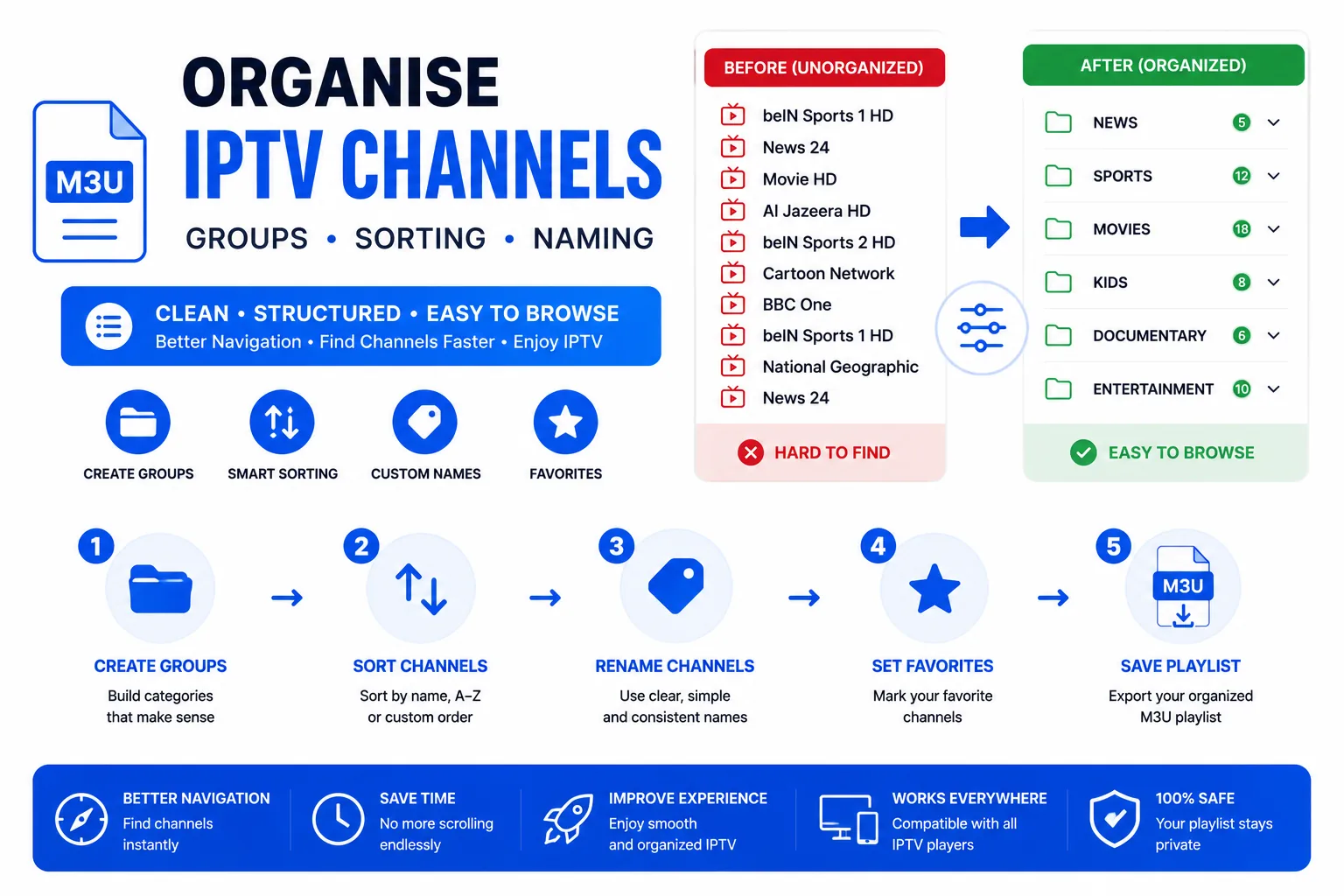
Understanding group-title to organize IPTV channels
The group-title attribute in the #EXTINF tag is the primary tool to organize IPTV channels in M3U playlists. Every channel with the same group-title value is displayed together as a folder or category in your IPTV player when you organize IPTV channels.
Without group-title to organize IPTV channels, all channels land in a single unordered list — navigating thousands of channels becomes impossible.
Group naming conventions to organize IPTV channels
There is no enforced standard to organize IPTV channels, but consistent naming makes a major difference. Three common patterns to organize IPTV channels:
| Convention | Example values | Best for |
|---|---|---|
| Category only | Sports, News, Movies, Kids | Simple personal playlists |
| Country | Category | UK | Sports, US | News, DE | Entertainment | Multi-country IPTV providers |
| Language | Category | Arabic | Sports, French | Movies | Multi-language providers |
Whichever convention you choose to organize IPTV channels, apply it consistently. Capitalisation matters when you organize IPTV channels — Sports and sports create two separate folders in most players.
Channel order when you organize IPTV channels
Channels appear in your IPTV app in the same order they appear in the M3U file, within their group. To prioritize frequently watched channels when you organize IPTV channels:
- Put your most-watched channels near the top of each group in the file.
- Use the M3U Editor to organize IPTV channels — click the up/down arrows to reorder channels visually.
- Some players (TiviMate) also support manual channel reordering within the app itself when you organize IPTV channels, independent of file order.
Renaming channels to organize IPTV channels
The display name after the comma in #EXTINF is what appears in your channel list. Rename channels when you organize IPTV channels to:
- Remove quality suffixes your provider adds (e.g.
[HD],| FHD |) - Add SD/HD/4K suffixes consistently so you can tell variants apart
- Standardise spacing and capitalisation for a cleaner list
The fastest way to bulk-rename is the M3U Editor — click any entry to expand it and edit the display title in-place.
Hiding unwanted groups
Most IPTV providers include channels from dozens of countries. To hide groups you never watch:
- In TiviMate: Settings → Channels → Groups → tap a group → Hide.
- In IPTV Smarters: Long-press a category → Hide category.
- In the M3U file itself: Open in Notepad++ → use Find (Ctrl+H) → replace the unwanted
group-title="Arabic"value withgroup-title="Hidden", then set that group to hidden in your player. Or delete those entries entirely.
Recommended workflow to organize IPTV channels with M3U Editor
- Upload your playlist to the M3U Editor to organize IPTV channels.
- Use the group filter dropdown to focus on one category at a time when you organize IPTV channels.
- Use search to find channels by name while you organize IPTV channels.
- Click any channel row to expand it and edit all fields: title, URL, group, logo, tvg-id to organize IPTV channels.
- Use the up/down arrows to reorder within the group.
- Export as
.m3u8when you finish organizing IPTV channels. - Validate the result with the M3U Validator.
Group naming examples to organize IPTV channels
#EXTM3U

# ── UK Channels ───────────────────────────────
#EXTINF:-1 tvg-id="bbc.one.uk" group-title="UK | Entertainment",BBC One HD
https://provider.example.com/live/bbc1.ts

#EXTINF:-1 tvg-id="sky.sports.main" group-title="UK | Sports",Sky Sports Main
https://provider.example.com/live/skysports.ts

# ── News ──────────────────────────────────────
#EXTINF:-1 tvg-id="cnn.us" group-title="News | International",CNN International
https://provider.example.com/live/cnn.ts

#EXTINF:-1 tvg-id="bbc.news" group-title="News | UK",BBC News
https://provider.example.com/live/bbcnews.ts

# ── Movies ────────────────────────────────────
#EXTINF:9180 group-title="Movies | Action",The Dark Knight (2008)
https://provider.example.com/vod/dark-knight.mp4Frequently Asked Questions
How do I organize IPTV channels by category?
Use the group-title attribute in EXTINF tags to categorize channels when you organize IPTV channels. Channels with the same group-title value appear together in folders in IPTV players like TiviMate and IPTV Smarters. This is the most effective way to organize IPTV channels.
Can I reorder channels in an M3U playlist?
Yes, manually reorder channels in a text editor or use the M3U Editor tool for visual drag-and-drop sorting when you organize IPTV channels. The order in the M3U file determines the display order in players. Some players like TiviMate also allow in-app reordering after you organize IPTV channels.
What's a good channel naming convention?
When you organize IPTV channels, use format: Channel Name [Quality] — for example 'BBC One HD' or 'ESPN 4K'. Keep names under 30 characters, avoid special characters, and be consistent across your playlist when you organize IPTV channels.
How many groups should I have?
When you organize IPTV channels, aim for 5-15 groups depending on playlist size. Too few groups (under 5) make navigation hard in large playlists. Too many (over 20) overwhelm users. Balance categories logically when you organize IPTV channels for best user experience.
Can I organize IPTV channels without editing the M3U file?
Most IPTV players allow limited channel organization within the app itself, but to permanently organize IPTV channels, you must edit the M3U file. TiviMate supports creating custom channel lists and hiding groups, but this doesn't change the source M3U. For universal changes that work in any player when you organize IPTV channels, edit the file using M3U Editor or a text editor.