M3U File Format: Complete Syntax Guide & Playlist Examples
Whether you’re organizing a local music library, building a video queue, or setting up IPTV channels, understanding the M3U format is essential. This comprehensive M3U format guide covers everything from basic M3U syntax to IPTV attributes, file path rules, VLC export, and troubleshooting — with working M3U format examples throughout.
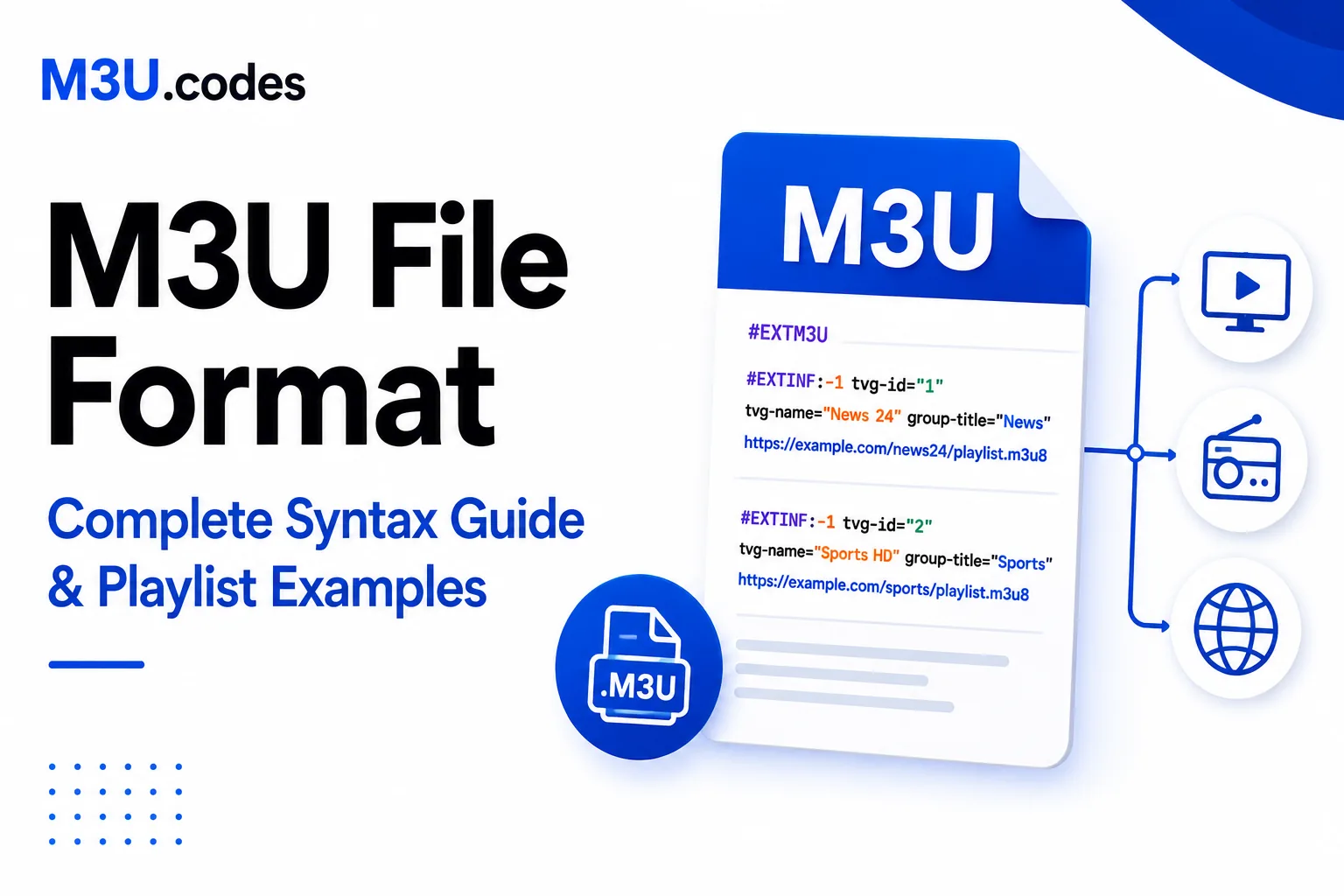
What Is an M3U File?
An M3U file (short for MP3 URL or Moving Picture Experts Group Audio Layer 3 Uniform Resource Locator) is a plain-text file that acts as a playlist. It contains no audio or video data itself — it is a list of addresses pointing to media files, either on your local drive or on the internet.
When you open an M3U in a media player, the software reads each address in order, fetches the corresponding file, and plays it. This makes M3U files extremely lightweight — a playlist of 10,000 IPTV channels is typically only a few hundred kilobytes of text.
M3U is supported natively by VLC, Windows Media Player, iTunes, Kodi, virtually every smart TV app, and all major IPTV players. It has become the universal standard for media playlists precisely because the format is simple enough for any text editor to produce.
M3U vs M3U8: Which Should You Use?
The difference is purely about character encoding:
| Extension | Encoding | Best for |
|---|---|---|
.m3u | System default (varies by OS/locale) | Local files with standard English filenames |
.m3u8 | UTF-8 (explicit) | Internet streaming; filenames with accents, Japanese, Arabic, Cyrillic, etc. |
The internal structure is identical — both use the same tags and syntax. If in doubt, use .m3u8 and save with UTF-8 encoding. It will work everywhere a .m3u file works, and it will also handle non-Latin characters correctly.
Note: In the context of Apple’s HLS streaming protocol, .m3u8 files have additional HLS-specific tags. See the M3U8 streaming guide for details on that use case. This article focuses on the M3U playlist format for local files and IPTV.
The Anatomy of an M3U Playlist
There are two variants of the format: basic and extended. Almost every real-world use case calls for the extended format.
1. Basic M3U format
The bare minimum — a plain list of file paths or URLs, one per line. No metadata, no track names, no durations.
C:\Music\Rock\song1.mp3
C:\Music\Rock\song2.mp3
C:\Music\Pop\song3.mp3
This works, but your player has to open each file to read its title. Large playlists will load slowly, and the display will show raw filenames instead of artist/track names.
2. Extended M3U format
The extended format adds metadata via #EXT* tags. It always starts with #EXTM3U on the first line, followed by pairs of lines for each entry:
- A
#EXTINFmetadata line (duration + title) - The file path or URL
#EXTM3U

#EXTINF:235,The Beatles - Come Together
C:\Music\TheBeatles\ComeTogether.mp3

#EXTINF:180,Queen - We Will Rock You
C:\Music\Queen\WeWillRockYou.mp3
Understanding #EXTINF
| Part | Example | Meaning |
|---|---|---|
#EXTINF: | #EXTINF: | Tag name — required |
| Duration | 235 | Length in seconds. Use -1 for live streams or unknown duration. |
| Comma | , | Separator between duration and display title |
| Title | The Beatles - Come Together | Display name shown in the player |
The line immediately after #EXTINF must be the media path or URL. No blank lines between them.
Absolute vs Relative File Paths
For local file playlists, incorrect paths are the number-one cause of broken playlists. You must understand the two options:
Absolute paths
Point to the exact location on a specific computer.
- Windows example:
C:\Users\John\Music\song.mp3 - macOS/Linux example:
/home/john/Music/song.mp3
Pros: The M3U file can be saved anywhere and still find the media.
Cons: If you move the music folder or transfer the playlist to another computer, every path breaks.
Relative paths
Point to the media location relative to where the M3U file itself is saved.
- If the M3U and the MP3 are in the same folder:
song.mp3 - If the MP3 is one folder deeper:
Rock\song.mp3
Pros: Fully portable — move the entire folder to a USB drive or new PC and it still works.
Cons: Moving the M3U file out of its correct folder breaks the playlist.
Rule of thumb: Use relative paths for local playlists you might share or move. Use absolute paths only when the playlist will never leave your machine.
How to Create an M3U Playlist in Notepad
You do not need any special software. Here is the complete process on Windows:
Open Notepad
Win + R, type notepad, press Enter. To inspect an existing M3U file, right-click it in File Explorer → Open With → Notepad.Add the header
#EXTM3U on the very first line. Press Enter. This line is mandatory — without it, many players treat the file as a basic playlist and ignore all #EXTINF metadata.Add your tracks
#EXTINF line followed by the path on the next line. Leave a blank line between entries for readability (optional — players ignore blank lines).Save correctly — this step is critical
- Go to File → Save As
- Change Save as type to All Files (*.*)
- Name the file with a
.m3uextension, e.g.MyMix.m3u - Set the Encoding dropdown to UTF-8
- Click Save
⚠ If you skip the "All Files" step, Notepad saves it as MyMix.m3u.txt — a text file that media players will not recognise.
#EXTM3U

#EXTINF:210,Artist One - Song One
D:\Audio\SongOne.mp3

#EXTINF:195,Artist Two - Song Two
D:\Audio\SongTwo.mp3
Already have an M3U file? Validate it first.
The M3U Validator checks for syntax errors, broken paths, missing EXTINF tags, and duplicate entries — before you waste time debugging in VLC.
How to Create a Playlist for IPTV Players
IPTV playlists use the same extended M3U format, but the #EXTINF line includes additional attributes that IPTV apps use for EPG matching, channel logos, and group organisation.
IPTV #EXTINF attributes
| Attribute | Example | Purpose |
|---|---|---|
tvg-id | channel1 | Matches the channel to an EPG source. Must match exactly what your EPG provider uses. |
tvg-name | News Network | Channel name used internally by the IPTV app. |
tvg-logo | http://…/logo.png | URL to the channel logo image. Displayed in the channel list. |
group-title | News | Groups channels into folders/categories in the player UI. |
All attributes sit on the same #EXTINF line, inside the tag (before the comma). The display name that appears in menus comes after the comma, at the end of the line.
#EXTM3U

#EXTINF:-1 tvg-id="channel1" tvg-name="News Network" tvg-logo="http://example.com/logo.png" group-title="News",Live News Network
http://streaming.server.com:8080/live/username/password/1234.ts

#EXTINF:-1 tvg-id="sports1" tvg-name="Sports HD" tvg-logo="http://example.com/sports.png" group-title="Sports",Sports HD
http://streaming.server.com:8080/live/username/password/5678.ts
Editing a large IPTV playlist manually
IPTV providers often supply playlists with thousands of channels from dozens of countries. To trim it down to what you actually watch:
- Open the file in Notepad++ (free download — far better than plain Notepad for large files).
- Use Find (Ctrl+F) to search for a
group-titlevalue you want to remove (e.g.group-title="Arabic"). - Delete the
#EXTINFline and the URL line directly below it. - Repeat for all channels you want removed.
- Save with UTF-8 encoding.
Alternatively, the M3U Editor tool lets you do this visually in your browser — no text editing required.
Editing a large IPTV playlist?
The M3U Editor lets you visually remove, reorder, and rename channels in your browser — no text editor needed.
Automated Methods for Generating M3U Files
Manually typing paths for hundreds of MP3 files is not practical. Here are two fast automated methods.
Method 1: VLC Media Player playlist export
- Open VLC. Press Ctrl+L to show the Playlist panel.
- Drag your audio or video files into the VLC window.
- Drag the entries to arrange playback order.
- Go to Media → Save Playlist to File (or press Ctrl+Y).
- In the save dialog, set Save as type to M3U playlist (*.m3u).
- Click Save.
VLC writes the #EXTM3U and #EXTINFtags automatically, using the actual file metadata (artist, title, duration) from each track’s embedded tags.
Method 2: Windows Command Prompt — one-second folder to playlist
This generates a basic (no metadata) M3U from an entire folder of MP3s instantly.
dir /b *.mp3 > playlist.m3uHow it works:
dir— list directory contents/b— bare format (filenames only, no size or date)*.mp3— filter to MP3 files only. Change to*.flacor*.mp4as needed.> playlist.m3u— write the output to a new file calledplaylist.m3u
The result is a relative-path playlist — since it only contains filenames, the M3U file works from any location as long as it stays in the same folder as the music files.
To open the Command Prompt in the right folder: in File Explorer, click the address bar, type cmd, press Enter. The prompt opens directly in that directory.
Troubleshooting Common M3U Issues
Playlist loads but shows no tracks (red × icons in VLC)
Always a path problem. Open the M3U in Notepad and check:
- Does the path match the file’s actual location? Navigate there in File Explorer to confirm.
- Are there typos? A missing backslash (
\) or forward slash (/) breaks the path. - Did you move the music folder after creating the playlist? Update all paths, or recreate the playlist from the new location.
- Is the drive letter correct? External drives change letters when reconnected.
The M3U Validator highlights every broken or malformed path in one scan.
Weird characters in track names (é instead of é)
This is a UTF-8 encoding mismatch. Fix it by re-saving the file:
- Open in Notepad.
- File → Save As
- Set Encoding to UTF-8.
- If the problem persists, rename the extension from
.m3uto.m3u8— this forces players to read it as UTF-8.
IPTV channels skip or buffer every few seconds
This is almost never a problem with the M3U file itself. Causes:
- Server connection limit: Your provider limits simultaneous connections. Use a player that supports reconnection backoff.
- VLC loop mode: VLC can loop the stream URL instead of waiting for the next segment. Click the Loop button at the bottom to disable it.
- Expired token in the stream URL: Request a fresh M3U from your provider. IPTV stream URLs often embed authentication tokens that expire.
M3U file opens as a text file in the browser or Explorer
The OS is not associating the .m3u extension with a media player. Right-click the file → Open With → choose VLC (or your preferred player) → tick Always use this app.
Best M3U Editor Software
For large playlists, a plain text editor becomes tedious. These tools handle M3U files more efficiently:
- M3U.codes Editor (browser, free): Visual channel-by-channel editor. Runs entirely in your browser — no upload. Edit names, logos, groups, and stream URLs. Export when done.
- Notepad++ (Windows, free):Text editor with syntax highlighting, Find & Replace with regex, and column selection. Indispensable for bulk-removing groups from large IPTV playlists.
- VLC Media Player (all platforms, free): Built-in playlist editor. Best for local file playlists where you want drag-and-drop ordering before exporting.
- Mp3tag (Windows/macOS, free): Primarily an audio tag editor, but has excellent M3U export. Lets you clean up embedded metadata first (artist, album, cover art) and then export a correctly formatted extended M3U in one click.