Remove Duplicate Channels from M3U IPTV Playlists
Learning how to remove duplicate channels M3U playlists is essential for optimization. This guide shows you how to remove duplicate channels M3U files using free tools and manual methods. Whether you want to remove duplicate channels M3U playlists automatically or identify duplicates first, these techniques to remove duplicate channels M3U will help. Duplicate channels bloat your M3U file, slow down your IPTV app, and confuse EPG matching — learn how to remove duplicate channels M3U efficiently.
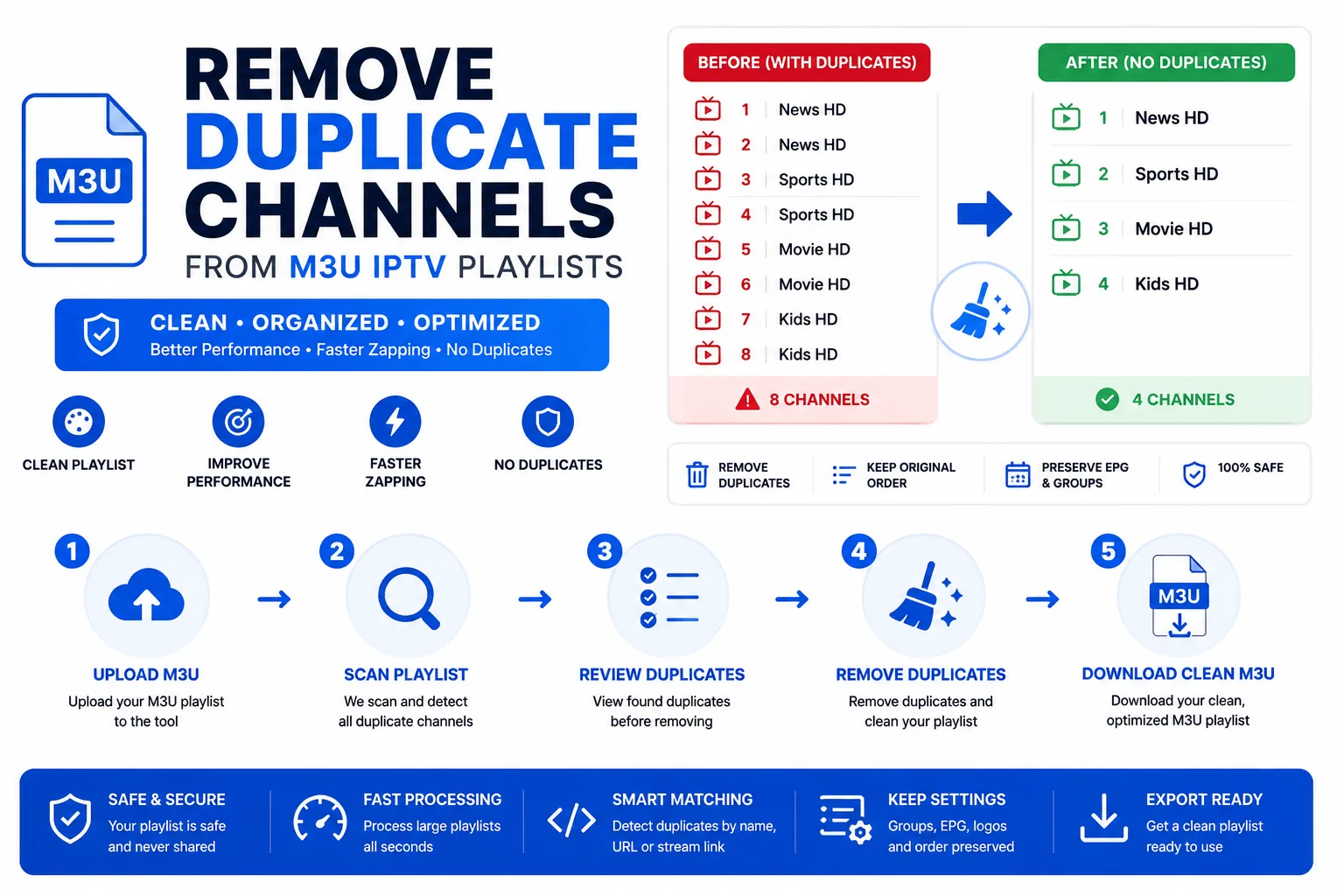
What counts as a duplicate when you remove duplicate channels M3U?
Two entries are duplicates when they share the same stream URL — regardless of whether the channel name or metadata differs. If two #EXTINF lines point to the same URL, one of them is redundant when you remove duplicate channels M3U playlists. The URL is the unique identifier; even if channel names like "BBC One HD" and "BBC 1 HD" differ, if both point to http://provider.com/stream/101.ts, they are duplicates.
Duplicates are common when you need to remove duplicate channels M3U in these situations:
- You merge two playlists from the same provider and need to remove duplicate channels M3U entries
- A provider re-adds channels under different group names (Sports vs Live Sports)
- You manually copy-paste entries and forget to change the URL, requiring you to remove duplicate channels M3U
- Your provider sends updated playlists that append new channels instead of replacing the file
- Auto-update scripts fail to deduplicate before concatenating playlists
Some IPTV players show every duplicate in the channel list, making navigation frustrating. Others may cache the first occurrence and ignore duplicates, but the bloated file size still slows initial loading. When you remove duplicate channels M3U, you reduce file size, improve app performance, and eliminate confusion in EPG matching and favorites management.
Why you should remove duplicate channels M3U regularly
Beyond the obvious annoyance of seeing "BBC One" listed three times, duplicates cause real technical problems:
Performance Impact
A playlist with 5,000 channels where 30% are duplicates loads 1,500 unnecessary entries. On slower devices (Fire TV Stick, older Android boxes), this delays app startup by several seconds. When you remove duplicate channels M3U, apps parse fewer entries and build channel lists faster.
EPG Matching Failures
EPG (Electronic Program Guide) links channels using tvg-id attributes. If you have three entries with tvg-id="bbc.one", your IPTV player may only match EPG data to the first occurrence. The duplicate entries show "No programme information" even though EPG data exists. Remove duplicate channels M3U to ensure reliable EPG matching across all entries.
Favorites and DVR Issues
When you add a channel to favorites, some players reference the channel by its position in the playlist. If you remove duplicate channels M3U after creating favorites, your saved positions may shift. Remove duplicate channels M3U before setting up favorites, recording schedules, or parental controls to avoid these reference errors.
Method 1 — Use the M3U Merger tool to remove duplicate channels M3U (fastest)
The M3U Merger has a built-in deduplication option to remove duplicate channels M3U. You don't need to merge multiple files — you can upload a single file and use it just to remove duplicate channels M3U:
- Open the M3U Merger tool.
- Upload or add your single M3U file by dragging it into the upload zone or clicking Add M3U file.
- Ensure Remove duplicate streams is checked (it's enabled by default).
- Click Merge — the tool processes even a single file to remove duplicate channels M3U.
- Download the deduplicated result. The file size will be smaller, and your channel count will reflect only unique streams.
The tool compares stream URLs case-insensitively and keeps the first occurrence of each URL, discarding any subsequent duplicates. Metadata from the first occurrence (channel name, logo, group) is preserved. If you prefer to keep the last occurrence instead of the first, manually reverse your playlist before processing, then reverse the output again.
Pro tip: The M3U Merger processes files up to 50MB entirely in your browser — no upload to a server. Your playlist data remains private. For playlists larger than 50MB, use the Notepad++ method described below or split the file into smaller chunks, deduplicate each, then merge the results.
Method 2 — M3U Validator (find duplicates before you remove duplicate channels M3U)
If you want to see which entries are duplicates before you remove duplicate channels M3U, use the validator to audit your playlist first:
- Open the M3U Validator.
- Paste your playlist text or upload the .m3u file.
- Click Validate playlist.
- In the Issues tab, look for Duplicate stream URL warnings.
- Each warning shows the line number and URL of the duplicate, allowing you to locate it in a text editor.
- Review whether duplicates are intentional (some users keep SD and HD versions of the same channel with different metadata).
- Use the M3U Merger to automatically remove duplicate channels M3U, or manually delete them in a text editor.
The validator identifies duplicates but doesn't remove them automatically. It's best used as a diagnostic tool when you suspect duplication but want to confirm before processing. Some users prefer this method because it lets them review each duplicate case — for example, you might have "Sky Sports Main HD" and "Sky Sports Main FHD" pointing to the same stream URL. You can decide which channel name to keep before running deduplication.
Method 3 — Notepad++ (manual, large files)
For very large playlists (50,000+ channels) where browser tools are slow or memory-constrained:
- Open the M3U file in Notepad++ (a free, fast text editor for Windows).
- Go to Edit → Line Operations → Remove Duplicate Lines. This removes exact duplicate lines but won't catch duplicates where metadata differs.
- For URL-based deduplication, go to TextFX → TextFX Tools → Sort lines case insensitive to group duplicate URLs together.
- Visually scan for repeated URLs. Each
#EXTINFline followed by a URL is one entry; if you see the same URL multiple times, delete all but one#EXTINF + URLpair. - Save and re-validate using the M3U Validator.
Warning: Sorting the file alphabetically by URL destroys the original channel order. Use this method only when duplicate removal is more important than preserving order. To preserve order, use the M3U Merger tool instead, which maintains entry sequence while removing duplicates based on URL comparison.
Advanced: Remove duplicates by tvg-id instead of URL
In some cases, you want to remove duplicate channels M3U based on tvg-id rather than URL. For example, if your provider offers multiple stream qualities for "BBC One" with different URLs but the same tvg-id="bbc.one.uk", standard URL-based deduplication won't catch them. To remove by tvg-id:
- Export your playlist to JSON using the M3U Converter.
- Use a JSON deduplication tool or script (Python, JavaScript) to filter by unique
tvgIdvalues. - Convert the deduplicated JSON back to M3U format.
This method requires scripting knowledge but is useful when managing multi-quality streams where you only want one entry per channel regardless of URL differences.
Preventing duplicates in future
- Always run the M3U Merger's deduplication when combining playlists from the same provider. Even if you think the playlists don't overlap, providers often include popular channels in multiple category exports.
- Use the M3U Validator as a final check before deploying any playlist to your IPTV app or sharing with others. Validation takes seconds and catches duplicates plus dozens of other errors.
- When adding channels manually, search for the stream URL in your text editor (
Ctrl+F) before adding a new entry to confirm it isn't already present. - Automate deduplication in update workflows. If you use scripts to refresh playlists nightly, add a deduplication step using the M3U Merger tool or a command-line tool like
awkor Python. - Avoid concatenating playlists with
cator copy-paste. Use the M3U Merger tool which deduplicates automatically as it combines files.
Frequently asked questions about removing duplicate channels
What counts as a duplicate in an M3U file?
Two entries are duplicates when they share the same stream URL. The channel name (#EXTINF metadata) may differ, but if the URL is identical, it's a duplicate. For example, "BBC One HD" and "BBC1" pointing to http://stream.example.com/bbc1.m3u8 are duplicates.
Does removing duplicates affect playback?
No. Removing duplicate entries only affects the channel list size and app performance. Playback quality and stream availability are determined by the stream URL itself, which remains unchanged. You're simply removing redundant references to the same stream.
Will I lose channel metadata when removing duplicates?
Deduplication tools keep the first occurrence of each unique URL, including its metadata (channel name, logo URL, group title, tvg-id). Later duplicates are discarded. If you prefer different metadata from a duplicate entry, manually edit the first occurrence before deduplication or reorder entries so your preferred version appears first.
Can I remove duplicates automatically on a schedule?
Yes, if you use scripting. Write a Python or Node.js script that downloads your M3U playlist, parses it, removes duplicates by URL, and saves the cleaned version. Run this script via cron (Linux/Mac) or Task Scheduler (Windows) before your IPTV app refreshes its playlist. The M3U Merger tool runs in the browser and can't be directly automated, but you can use its underlying deduplication logic in a script.
My IPTV app still shows duplicates after deduplication. Why?
Your app may be caching the old playlist. Force a playlist refresh in your app settings (usually "Reload playlist" or "Update channels"). If duplicates persist, re-download the playlist from your provider — they may be sending duplicates from their server. Verify your deduplicated file has fewer entries than the original by checking the entry count in the M3U Validator.