TiviMate Setup Guide — Complete IPTV Config for Android TV
This comprehensive TiviMate setup guide covers complete TiviMate setup for Android TV and Fire TV Stick. From initial TiviMate setup and adding M3U playlists to TiviMate setup for EPG configuration, group management, and recording, this TiviMate setup tutorial walks through every step. Whether you're doing your first TiviMate setup or troubleshooting TiviMate setup issues, this TiviMate setup guide has you covered with the cleanest UI and most reliable M3U parsing available.
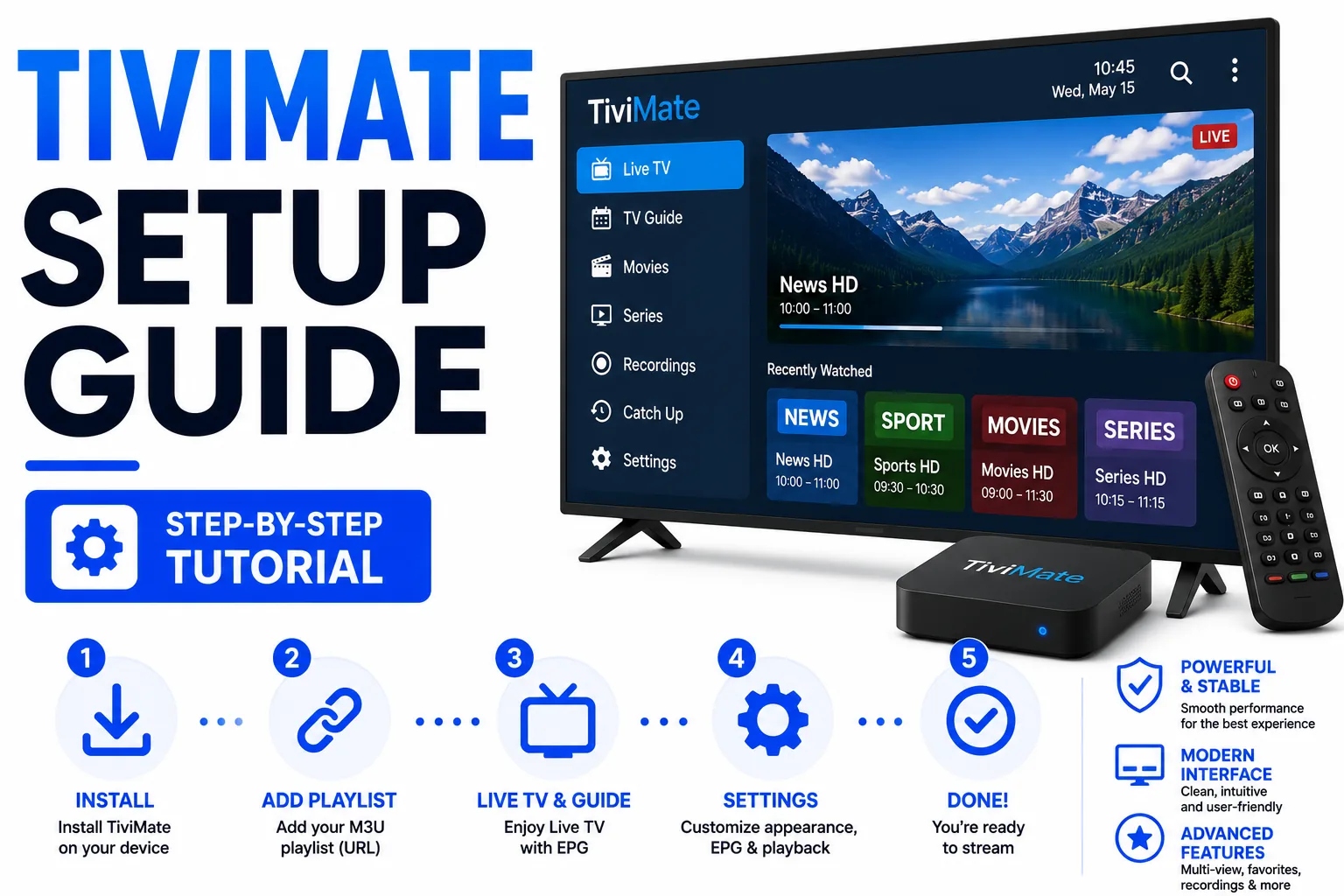
Requirements for TiviMate Setup
- Android TV device, Fire TV Stick (any generation), or NVIDIA Shield for TiviMate setup
- An M3U URL or .m3u file from your IPTV provider for TiviMate setup
- An EPG/XMLTV URL (optional but recommended for complete TiviMate setup)
- TiviMate installed from the Play Store or Amazon Appstore
Step 1 — Install TiviMate for TiviMate Setup
On Android TV: Open the Google Play Store, search "TiviMate IPTV Player", install for TiviMate setup.
On Fire TV Stick: Open the Amazon Appstore, search "TiviMate", install. If not available in your region for TiviMate setup, use the Downloader app to sideload the APK from the TiviMate website.
Step 2 — Add Your M3U Playlist in TiviMate Setup
- Open TiviMate. On first launch, you’ll see a welcome screen — tap Add Playlist.
- Select M3U Playlist.
- Choose Enter URL if your provider gave you an M3U URL, or Select File if you have a downloaded .m3u file.
- Enter the URL and tap Next.
- TiviMate downloads and parses the playlist. This may take 10–60 seconds depending on file size.
- Give the playlist a name (e.g. "My IPTV") and tap Add.
Step 3 — Add EPG (Programme Guide) in TiviMate Setup
- Go to Settings (gear icon) → EPG Sources during TiviMate setup.
- Tap Add Source.
- Enter your XMLTV EPG URL for your TiviMate setup and give it a name.
- Set Update Period to once per day.
- Tap Add — TiviMate downloads the EPG file.
If your provider didn’t give you an EPG URL for TiviMate setup, search for a free XMLTV source that covers your channels. The EPG guide covers how tvg-id matching works in detail.
Step 4 — Configure Groups in TiviMate Setup
By default, TiviMate shows all channels in one list. To organise by category:
- Go to Settings → Playlists → select your playlist.
- Enable Show Groups.
- In the channel list, press the menu button to toggle Group view.
- To hide a group: hold on the group name → Hide Group.
TiviMate Premium
The free version of TiviMate is fully functional for watching live channels. Premium (~$4.99/year) adds:
- Multiple playlists — load more than one M3U at the same time
- Recording — record live TV to local storage or USB drive
- Catch-up — watch past broadcasts (requires provider support)
- Multiple EPG sources — combine EPG data from different XMLTV URLs
- Auto-update playlists — automatically refresh M3U URL daily
Troubleshooting TiviMate Setup
Playlist won’t load during TiviMate setup
- Validate your M3U URL first for TiviMate setup using the M3U Validator.
- Check the URL is accessible during TiviMate setup — paste it into a browser on another device.
- If the URL contains authentication tokens for TiviMate setup, check they haven’t expired.
No channels showing after TiviMate setup
- The M3U may have parsed but all channels are in hidden groups after TiviMate setup. Check Settings → Channels → show all hidden.
- Try clearing TiviMate’s app cache: Android Settings → Apps → TiviMate → Clear Cache → restart and redo TiviMate setup.
EPG not showing programme data
- Check that the tvg-id in your M3U matches the channel ID in the XMLTV file exactly.
- Force an EPG refresh: Settings → EPG Sources → tap your source → Refresh Now.
- See the full EPG troubleshooting guide.
Channels buffering or not playing
- Test the stream URL directly in VLC to rule out a network issue.
- Try changing the player in TiviMate: channel settings → Player → switch between ExoPlayer and internal player.
- Check your internet speed — HD streams need at least 10 Mbps stable.
Frequently Asked Questions About TiviMate Setup
Is TiviMate free?
Yes, TiviMate is free for watching live TV with full functionality during TiviMate setup and daily use. TiviMate Premium (~$5/year) adds multiple playlists, recording, catch-up TV, multiple EPG sources, and auto-update features to your TiviMate setup. The free version is fully functional for single-playlist viewing.
Does TiviMate work on Fire TV Stick?
Yes, TiviMate works perfectly on all Fire TV Stick generations. Install it from the Amazon Appstore for TiviMate setup, or sideload the APK using Downloader app if not available in your region. TiviMate setup on Fire TV is identical to Android TV setup.
How do I add M3U to TiviMate?
During TiviMate setup, open TiviMate, tap Add Playlist, select M3U Playlist, then either enter your M3U URL or select a local file. TiviMate will download and parse the playlist automatically during TiviMate setup. You can add multiple playlists with TiviMate Premium.
Why won't my M3U load in TiviMate?
Common causes of failed TiviMate setup include expired authentication tokens in the URL, syntax errors in the M3U file, or network connectivity issues. Validate your M3U file first using the M3U Validator to identify the problem before continuing TiviMate setup. TiviMate gives limited error feedback during TiviMate setup.
How do I update my playlist in TiviMate setup?
Go to Settings → Playlists, select your playlist, and tap Update. With TiviMate Premium, you can enable automatic playlist updates in your TiviMate setup (hourly, daily, or weekly). Automatic updates keep your channel list current without manual intervention after TiviMate setup.
Validate your M3U before TiviMate setup
Catch errors that cause TiviMate to fail silently during TiviMate setup.