VLC IPTV Setup — How to Load M3U Playlists in VLC
This VLC IPTV setup guide shows you how to complete VLC IPTV setup on every platform. From VLC IPTV setup on Windows and Mac to VLC IPTV setup on Android and iOS, this VLC IPTV setup tutorial covers loading M3U playlists via URL or file. Learn VLC IPTV setup tips, tune settings for live streams during VLC IPTV setup, and understand VLC IPTV setup limitations compared to dedicated IPTV players.
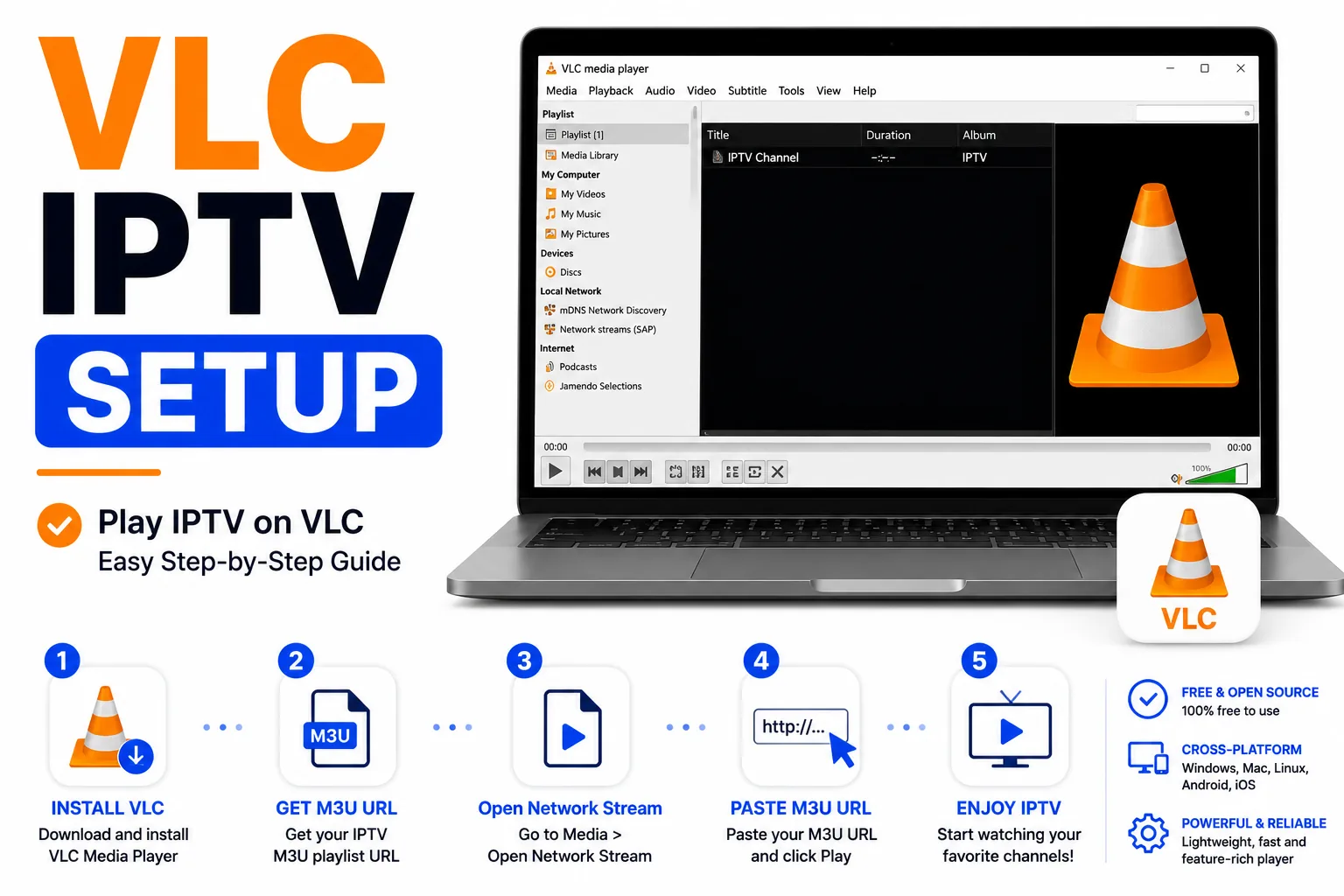
VLC IPTV Setup on Windows and Mac
Method 1: Open M3U URL directly in VLC IPTV setup
- Open VLC Media Player for VLC IPTV setup.
- Go to Media → Open Network Stream (Ctrl+N on Windows, Cmd+N on Mac) to begin VLC IPTV setup.
- Paste your M3U URL into the URL field during VLC IPTV setup.
- Click Play — VLC downloads the playlist and starts playing the first entry.
Method 2: Open a local .m3u file for VLC IPTV setup
- Go to Media → Open File (Ctrl+O).
- Browse to your .m3u or .m3u8 file and open it.
- VLC loads all entries into its playlist view.
To show the playlist panel: View → Playlist (or Ctrl+L). You can now see all channels and click any to play it.
Method 3: Drag and drop
Drag a .m3u file from Windows Explorer or Mac Finder directly onto the VLC window. It loads immediately.
VLC IPTV Setup on Android and iOS
VLC for Android and iOS supports M3U files but the VLC IPTV setup interface is less convenient than on desktop.
- Copy your M3U URL to the clipboard for VLC IPTV setup.
- Open VLC → tap the Network tab during VLC IPTV setup.
- Paste the URL and tap the stream to open it in your VLC IPTV setup.
For a better mobile IPTV experience than VLC IPTV setup, use IPTV Smarters Pro (Android/iOS) or GSE Smart IPTV (iOS) instead. VLC on mobile lacks channel list management and EPG that full IPTV setup provides.
Settings for Live Streams in VLC IPTV Setup
VLC’s default buffer settings are tuned for VOD, not live TV in VLC IPTV setup. If channels stutter or desync during VLC IPTV setup, adjust:
- Go to Tools → Preferences (Show All settings).
- Navigate to Input / Codecs.
- Set File caching and Network caching to
1000ms (1 second) for live streams. Lower values reduce delay; higher values reduce stuttering. - Click Save and restart VLC.
VLC IPTV Setup Limitations
VLC works for basic VLC IPTV setup, but it was built as a general media player, not an IPTV client. Be aware of these VLC IPTV setup limitations:
- No EPG in VLC IPTV setup — no programme guide, no "what’s on now" information
- No channel logos — tvg-logo attributes are ignored in VLC IPTV setup
- No channel grouping — group-title is not used for navigation in VLC IPTV setup
- No catch-up — time-shifted TV is not supported in VLC IPTV setup
- Large playlists are slow — loading 10,000+ channel playlists can freeze VLC during VLC IPTV setup
For serious IPTV use on Android TV or Fire TV beyond VLC IPTV setup, use TiviMate instead. VLC IPTV setup is best for quickly testing individual stream URLs or playing small local playlists.
Using VLC to Test Streams
VLC’s main value for IPTV users is as a stream tester. If a channel isn’t working in your IPTV app:
- Copy the stream URL from your M3U file.
- Open VLC → Media → Open Network Stream → paste the URL → Play.
- If it plays in VLC, the stream is working and the problem is in your IPTV app’s configuration.
- If it doesn’t play in VLC either, the stream URL is broken, expired, or requires authentication.
Frequently Asked Questions About VLC IPTV Setup
Can VLC play IPTV M3U playlists?
Yes, VLC supports M3U and M3U8 playlists natively for VLC IPTV setup. Open Media → Open Network Stream, paste your M3U URL, and click Play during VLC IPTV setup. VLC will load the playlist and play channels. However, VLC IPTV setup lacks EPG and channel management features.
Why use VLC for IPTV instead of dedicated apps?
VLC IPTV setup is best for quick stream testing, not daily IPTV use. VLC lacks EPG (programme guide), channel logos, and grouping that dedicated IPTV apps provide. For full IPTV features beyond basic VLC IPTV setup, use TiviMate on Android TV or IPTV Smarters on other platforms.
How do I load a local M3U file in VLC?
For VLC IPTV setup with local files, go to Media → Open File (Ctrl+O), browse to your .m3u or .m3u8 file, and click Open. VLC loads all entries into the playlist view (View → Playlist or Ctrl+L). This is the simplest VLC IPTV setup method for local playlists.
Why is VLC buffering on IPTV streams?
VLC's default buffer is tuned for VOD, not live TV during VLC IPTV setup. Go to Tools → Preferences → Input/Codecs and set Network caching to 1000ms for live streams in VLC IPTV setup. Lower values reduce delay but may increase stuttering. Adjusting buffer settings is essential for smooth VLC IPTV setup playback.
Can I save my VLC IPTV setup configuration?
Yes, after VLC IPTV setup, go to Media → Save Playlist to File to save the loaded M3U as a local .m3u8 file. You can then load this saved playlist quickly in future VLC IPTV setup sessions without re-entering URLs. This simplifies repeated VLC IPTV setup.
Playlist not loading in VLC?
Validate your M3U to find syntax errors and broken entries before debugging further.