Kodi IPTV Setup — PVR IPTV Simple Client Configuration Guide
This Kodi IPTV setup guide shows you how to configure Kodi IPTV using the PVR IPTV Simple Client add-on. Whether you're new to Kodi IPTV setup or need to troubleshoot your Kodi IPTV configuration, this complete Kodi IPTV setup tutorial covers M3U playlist loading, EPG configuration, and common Kodi IPTV setup issues. Follow this Kodi IPTV setup guide to turn any device into a full media centre with live TV.
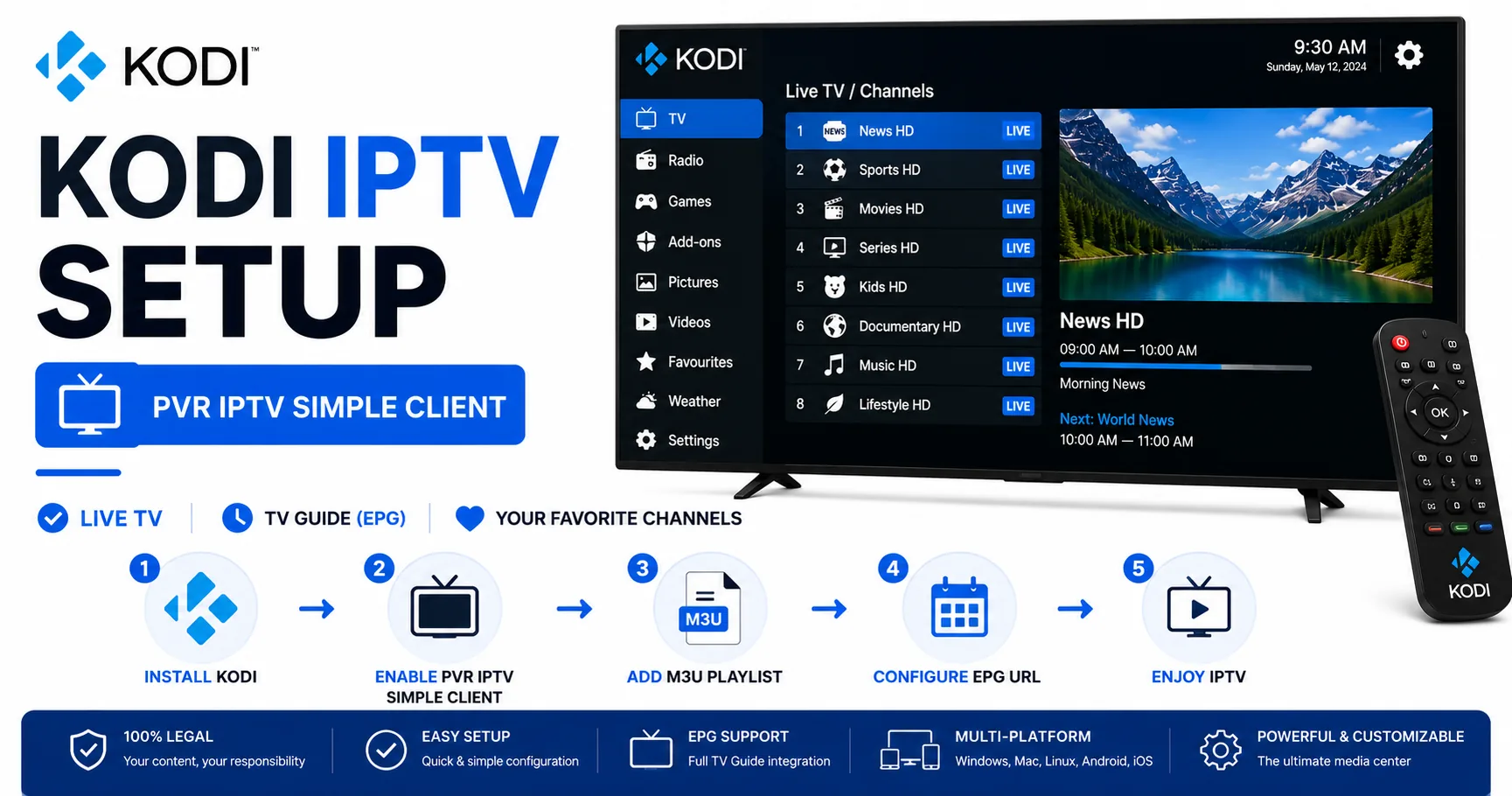
Requirements for Kodi IPTV Setup
- Kodi installed on your device (Windows, Mac, Linux, Android, Fire TV, Raspberry Pi)
- An M3U URL or .m3u file from your IPTV provider for Kodi IPTV setup
- An EPG/XMLTV URL (optional but recommended for complete Kodi IPTV setup)
Before starting your Kodi IPTV setup, validate your M3U playlist to catch any syntax errors. The PVR Simple Client gives limited error feedback during Kodi IPTV setup — a broken playlist just shows an empty TV guide.
Step 1 — Install PVR IPTV Simple Client for Kodi IPTV Setup
- Open Kodi and go to Settings (the gear icon).
- Select Add-ons.
- Click Install from repository.
- Select Kodi Add-on Repository.
- Navigate to PVR Clients.
- Select PVR IPTV Simple Client and click Install.
- Wait for the installation to complete. You should see a "Add-on installed" notification.
Step 2 — Enable Live TV
- Go to Settings → PVR & Live TV.
- Ensure Enabled is toggled on.
- You may be prompted to restart Kodi — do so if asked.
Step 3 — Configure the Add-on for Kodi IPTV Setup
- Go to Settings → Add-ons → My add-ons → PVR clients.
- Select PVR IPTV Simple Client and click Configure to begin your Kodi IPTV setup.
- In the General tab for Kodi IPTV setup:
- Set M3U Playlist URL to your M3U URL, or
- Set M3U Playlist location to Local path and browse to your .m3u file.
- Click OK.
Step 4 — Configure EPG for Kodi IPTV Setup
- In the PVR IPTV Simple Client settings, go to the EPG Settings tab.
- Set EPG URL to your XMLTV EPG URL.
- Set Cache EPG in memory to on.
- Click OK.
- Restart Kodi to apply the EPG settings.
After restarting, navigate to TV → Guide in the Kodi main menu. Programme data should appear within a few seconds as the EPG loads.
Step 5 — Watch Live TV
- From the Kodi home screen, select TV.
- Select Channels to browse the channel list.
- Select Guide to see the full programme grid.
- Click any channel to start playback.
Kodi IPTV Setup Troubleshooting
No channels after Kodi IPTV setup
- Verify the M3U URL loads in a browser — it should return plain text starting with #EXTM3U.
- Check the PVR Simple Client logs during Kodi IPTV setup: Settings → System → Logging → enable debug logging, restart, then check the log file for error messages.
- Validate your M3U file with the M3U Validator before continuing Kodi IPTV setup.
TV option not visible in menu after Kodi IPTV setup
- PVR & Live TV must be enabled in Settings for Kodi IPTV setup. Go to Settings → PVR & Live TV → General → Enabled.
- At least one PVR client must be active for Kodi IPTV setup. Check that PVR IPTV Simple Client shows as enabled in Add-ons.
No EPG / empty programme guide
- Check that the EPG URL is accessible — paste it into a browser to verify.
- Ensure tvg-id in your M3U matches the channel IDs in the XMLTV file exactly.
- Force an EPG update: TV → Guide → press C (context menu) → Force EPG update.
Channels buffer or don't play
- Go to Settings → Player → Videos → set Adjust display refresh rate to off.
- Try switching the player: Settings → Player → Use MMAL hardware acceleration (on Raspberry Pi).
- Test the stream URL in VLC to confirm it works outside Kodi.
Frequently Asked Questions About Kodi IPTV Setup
How do I add IPTV to Kodi?
For Kodi IPTV setup, install the PVR IPTV Simple Client add-on from the Kodi Add-on Repository, enable Live TV in settings, then configure the add-on with your M3U playlist URL or file path. Complete Kodi IPTV setup takes about 5 minutes following the steps in this guide.
Where is PVR IPTV Simple Client in Kodi?
During Kodi IPTV setup, go to Settings → Add-ons → Install from repository → Kodi Add-on Repository → PVR clients → PVR IPTV Simple Client. After installation, configure it in Settings → Add-ons → My add-ons → PVR clients for your Kodi IPTV setup.
Why is the TV option not showing in Kodi?
The TV option in Kodi IPTV setup only appears when PVR & Live TV is enabled (Settings → PVR & Live TV → General → Enabled) and at least one PVR client like IPTV Simple Client is installed and active. Both conditions must be met for successful Kodi IPTV setup.
Can Kodi record IPTV streams?
Yes, Kodi supports PVR recording after Kodi IPTV setup if your IPTV provider supports timeshift/recording features and you configure recording settings in the PVR client. Local storage or network storage is required for recording after Kodi IPTV setup. Recording settings are in Settings → PVR & Live TV → Recording.
How do I update my playlist in Kodi IPTV setup?
After Kodi IPTV setup, go to Settings → Add-ons → My add-ons → PVR clients → PVR IPTV Simple Client → Configure, then change your M3U URL or file path and click OK. Restart Kodi to reload the playlist. For automatic updates after Kodi IPTV setup, some users create scripts to replace the M3U file daily.
Validate before Kodi IPTV setup
PVR IPTV Simple Client gives no feedback on malformed playlists during Kodi IPTV setup — validate first to save time debugging.