IPTV Smarters Setup — Add M3U on Android, iOS & Windows
If you're looking for an IPTV Smarters setup guide, this complete IPTV Smarters setup tutorial covers everything. From initial IPTV Smarters setup on Android to IPTV Smarters setup on iPhone, Windows, and Mac, this IPTV Smarters setup guide explains how to add M3U URLs or Xtream Codes credentials. Whether you're doing your first IPTV Smarters setup or troubleshooting IPTV Smarters setup issues, this guide has you covered.
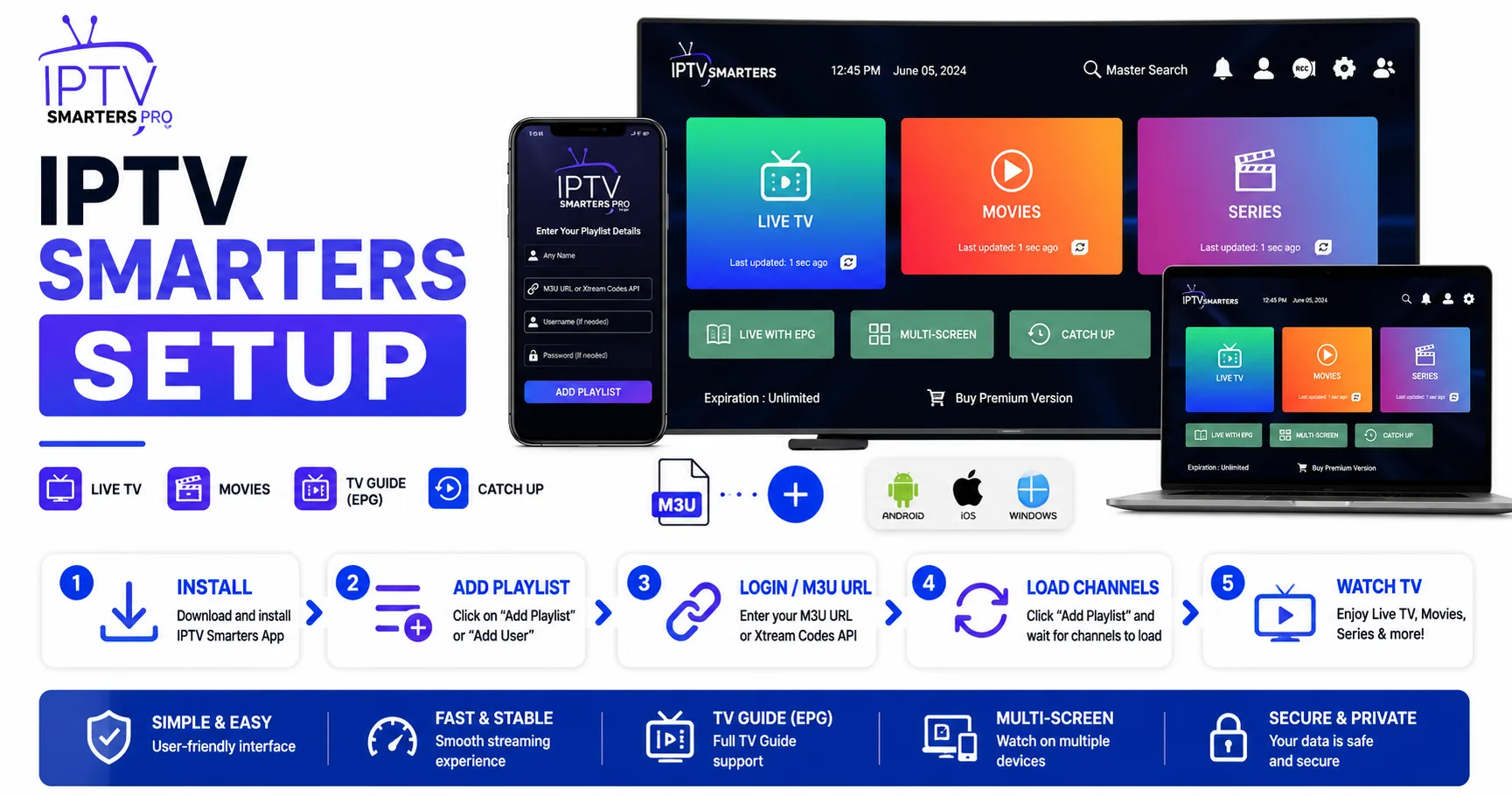
What is IPTV Smarters?
IPTV Smarters Pro is a free IPTV player available on Android, iOS, Windows, and Mac. It is one of the most widely used IPTV apps for IPTV Smarters setup because it supports two input methods:
- M3U URL or file — the standard method for IPTV Smarters setup, works with any provider
- Xtream Codes API — alternative IPTV Smarters setup method: login with username/password/server URL
It supports live TV, VOD, series, and catch-up, with an EPG programme guide for channels that have tvg-id set.
Before you start IPTV Smarters setup
Have ready for your IPTV Smarters setup:
- Your M3U URL or Xtream Codes credentials (server URL, username, password) from your provider
- The IPTV Smarters Pro app installed on your device
Validate your M3U playlist before IPTV Smarters setup — a malformed playlist causes IPTV Smarters to show a blank channel list with no error message during IPTV Smarters setup. Use the M3U Validator to check it first.
IPTV Smarters Setup on Android
- Install IPTV Smarters Pro from the Google Play Store.
- Open the app. Tap Add New User on the login screen.
- Select Load Your Playlist or File/URL.
- Enter a name for this profile (e.g. "My IPTV").
- Toggle Load Playlist URL and enter your M3U URL, or toggle Load Playlist from File to upload a local file.
- Tap Add User.
- The app downloads and parses the playlist. Tap the profile to enter the channel list.
IPTV Smarters Setup on iPhone / iPad
- Install IPTV Smarters Pro from the App Store for IPTV Smarters setup.
- Open the app and tap Add New User to begin IPTV Smarters setup.
- Select M3U URL / File.
- Enter a profile name and your M3U URL for your IPTV Smarters setup.
- Tap Add User. The playlist loads automatically.
For Apple TV IPTV Smarters setup, install via the App Store on tvOS. The IPTV Smarters setup flow is identical.
IPTV Smarters Setup on Windows
- Download IPTV Smarters Pro from the Microsoft Store or the official website.
- Open the app and select Add New User.
- Choose Load Your Playlist or File/URL.
- Enter your playlist name and M3U URL.
- Click Add User.
Using Xtream Codes (alternative to M3U)
If your provider uses Xtream Codes, you can log in directly instead of using an M3U URL:
- On the login screen, select Login with Xtream Codes API.
- Enter your credentials: server URL, username, and password.
- Tap Add User.
Xtream Codes automatically provides channels, VOD, and series organised into categories. The app updates the channel list automatically each time you open it.
Adding EPG
IPTV Smarters reads EPG from the x-tvg-url attribute in the M3U header automatically. If your provider didn't include one, or if you want to use a different EPG source:
- Go to Settings → EPG in the app.
- Enter an XMLTV EPG URL.
- Set the refresh interval and save.
See the EPG guide for how tvg-id matching works.
IPTV Smarters Setup Troubleshooting
Blank channel list after IPTV Smarters setup
- Validate your M3U with the M3U Validator before continuing IPTV Smarters setup — a missing
#EXTM3Uheader or syntax errors cause silent failures during IPTV Smarters setup. - Test the M3U URL in a browser — it should return plain text starting with
#EXTM3Ufor proper IPTV Smarters setup.
Some channels not showing after IPTV Smarters setup
- Check the Categories/Groups filter in your IPTV Smarters setup — some channels may be in a hidden group.
- IPTV Smarters may limit the number of channels displayed in the free version depending on platform.
Buffering
- Go to Settings → Player and switch between the internal player and ExoPlayer.
- Increase buffer size in player settings.
- Test the stream URL directly in VLC to isolate whether it's the stream or the app.
Frequently Asked Questions About IPTV Smarters Setup
Is IPTV Smarters Pro free?
Yes, IPTV Smarters Pro is completely free and works on Android, iOS, Windows, and Mac for IPTV Smarters setup. There are no hidden costs or premium versions required for IPTV Smarters setup. All features are available in the free version for complete IPTV Smarters setup.
What is the difference between M3U and Xtream Codes?
During IPTV Smarters setup, M3U is a playlist file format with channel URLs. Xtream Codes is an API login method where you use username/password/server URL for IPTV Smarters setup. Both methods work in IPTV Smarters setup, and the choice depends on what your provider offers for IPTV Smarters setup.
Why is my channel list blank after adding M3U?
A blank channel list during IPTV Smarters setup usually means your M3U file has syntax errors or is missing the required #EXTM3U header. Validate your playlist with an M3U validator tool before importing for successful IPTV Smarters setup. This is the most common IPTV Smarters setup issue.
Does IPTV Smarters work on Apple TV?
Yes, IPTV Smarters Pro is available on the tvOS App Store for Apple TV devices. The IPTV Smarters setup process is identical to the iPhone/iPad version. Complete your IPTV Smarters setup on Apple TV using the same steps as iOS IPTV Smarters setup.
Validate before IPTV Smarters setup
A malformed M3U silently shows a blank list during IPTV Smarters setup. Validate first.