How to Organize IPTV Channels — Groups, Sorting & Naming
A well-organized IPTV channel list makes the difference between a frustrating scroll through thousands of entries and finding what you want in seconds. This guide covers the group-title attribute, channel ordering, naming conventions, hiding unwanted categories, and a step-by-step workflow using the M3U Editor — so your playlist works cleanly in TiviMate, IPTV Smarters, or any M3U player.
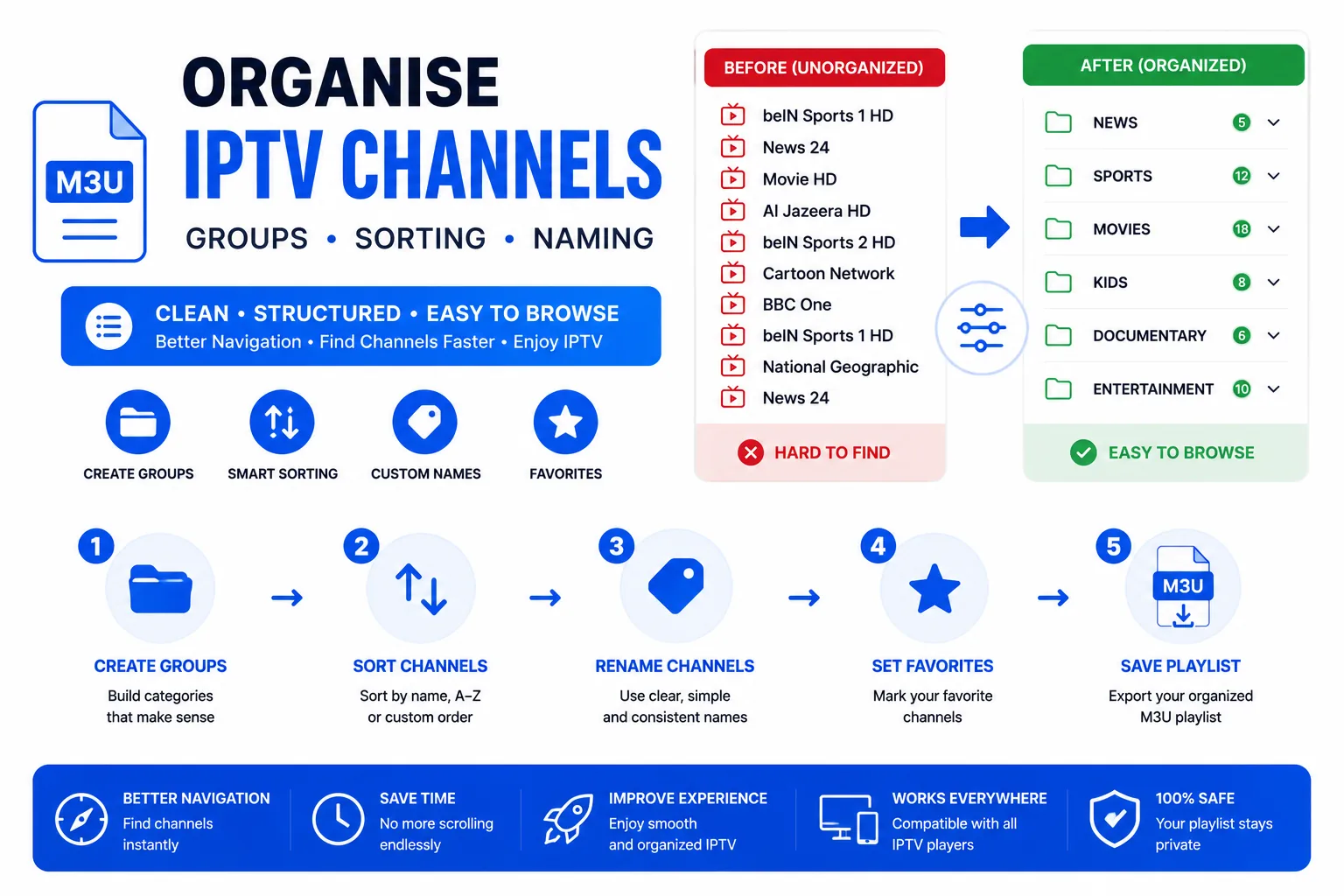
Understanding the group-title Attribute
The group-title attribute in the #EXTINF tag is the primary way to categorize channels in M3U playlists. Every channel with the same group-title value appears together as a folder in your IPTV player.
Without group-title, all channels land in a single unordered list — navigating thousands of channels becomes impossible.
Group naming conventions
There is no enforced standard, but consistent naming makes a major difference. Three common patterns:
| Convention | Example values | Best for |
|---|---|---|
| Category only | Sports, News, Movies, Kids | Simple personal playlists |
| Country | Category | UK | Sports, US | News, DE | Entertainment | Multi-country IPTV providers |
| Language | Category | Arabic | Sports, French | Movies | Multi-language providers |
Whichever convention you choose, apply it consistently. Capitalisation matters — Sports and sports create two separate folders in most players.
Channel Order
Channels appear in your IPTV app in the same order they appear in the M3U file, within their group. To prioritize frequently watched channels:
- Put your most-watched channels near the top of each group in the file.
- Use the M3U Editor to reorder channels visually with up/down arrows.
- Some players (TiviMate) also support manual channel reordering within the app, independent of file order.
Renaming Channels
The display name after the comma in #EXTINF is what appears in your channel list. Common reasons to rename:
- Remove quality suffixes providers add (e.g.
[HD],| FHD |) - Add SD/HD/4K suffixes consistently so you can tell variants apart
- Standardise spacing and capitalisation for a cleaner list
The fastest way to bulk-rename is the M3U Editor — click any entry to expand it and edit the display title in-place.
Hiding Unwanted Groups
Most IPTV providers include channels from dozens of countries. To hide groups you never watch:
- In TiviMate: Settings → Channels → Groups → tap a group → Hide.
- In IPTV Smarters: Long-press a category → Hide category.
- In the M3U file itself: Open in Notepad++ → use Find & Replace (Ctrl+H) → replace the unwanted
group-title="Arabic"value withgroup-title="Hidden", then set that group to hidden in your player. Or delete those entries entirely.
Workflow: Organize with M3U Editor
- Upload your playlist to the M3U Editor.
- Use the group filter dropdown to focus on one category at a time.
- Use search to find channels by name.
- Click any channel row to expand and edit all fields: title, URL, group, logo, tvg-id.
- Use the up/down arrows to reorder channels within each group.
- Export as
.m3u8when done. - Validate the result with the M3U Validator.
Group Naming Examples
#EXTM3U

# ── UK Channels ───────────────────────────────
#EXTINF:-1 tvg-id="bbc.one.uk" group-title="UK | Entertainment",BBC One HD
https://provider.example.com/live/bbc1.ts

#EXTINF:-1 tvg-id="sky.sports.main" group-title="UK | Sports",Sky Sports Main
https://provider.example.com/live/skysports.ts

# ── News ──────────────────────────────────────
#EXTINF:-1 tvg-id="cnn.us" group-title="News | International",CNN International
https://provider.example.com/live/cnn.ts

#EXTINF:-1 tvg-id="bbc.news" group-title="News | UK",BBC News
https://provider.example.com/live/bbcnews.ts

# ── Movies ────────────────────────────────────
#EXTINF:9180 group-title="Movies | Action",The Dark Knight (2008)
https://provider.example.com/vod/dark-knight.mp4Frequently asked questions
How do I organize IPTV channels by category?
Use the group-title attribute in #EXTINF tags. Channels with the same value appear together in a folder in TiviMate, IPTV Smarters, and other players. It's the standard way to create categories in any M3U playlist.
Can I reorder channels in an M3U playlist?
Yes. Channels display in the same order they appear in the M3U file. Use the M3U Editor to drag and reorder visually, or edit the file in a text editor. Some players like TiviMate also allow in-app reordering without changing the source file.
What's a good channel naming convention?
Use "Channel Name Quality" format — for example "BBC One HD" or "ESPN 4K". Keep names under 30 characters, avoid special characters, and be consistent across the whole playlist. Inconsistent naming makes channel search and EPG matching unreliable.
How many groups should I have?
Aim for 5–15 groups depending on playlist size. Fewer than 5 makes navigation hard in large playlists. More than 20 becomes overwhelming. Group by what makes sense for how you watch — usually Country, Content Type, or Language.
Can I reorganize without editing the M3U file?
Most IPTV players let you hide groups and create favourites within the app, but those changes don't modify the source file. For permanent changes that work in any player, edit the M3U file directly using the M3U Editor or a text editor.
Related guides
Quick Reactions
Was this guide helpful?